
Introduction
Flutter is a powerful framework developed by Google that allows developers to build Android, iOS, Web, and Desktop applications using a single codebase.
In this guide, you will learn how to install Flutter on Windows step-by-step, configure the environment, and run your first Flutter app.
1. System Requirements
Before installing Flutter, ensure your system meets the following requirements:
Operating System: Windows 10 or later (64-bit)
Disk Space: At least 2.5 GB free
Git: Required for Flutter SDK
IDE: Visual Studio Code or Android Studio
Windows PowerShell or Command Prompt
2. Download Flutter SDK

Steps
- Go to the official Flutter website:
Click Get Started
Select Windows
Download the Flutter SDK ZIP file
3. Extract Flutter SDK
Steps
Extract the downloaded ZIP file.
Move the extracted folder to:
C:\src\flutter
or
C:\development\flutter
Avoid installing Flutter inside Program Files.
4. Add Flutter to System PATH
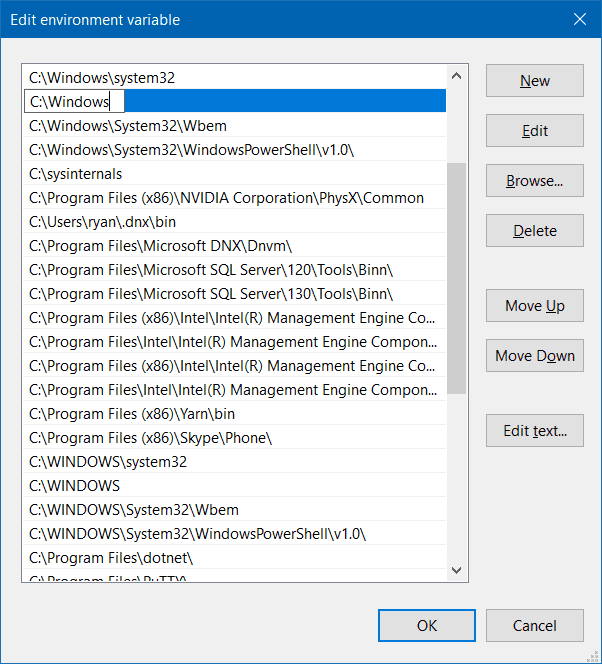
Steps
Open Start Menu
Search Environment Variables
Click Edit the system environment variables
Select Environment Variables
In System Variables, find Path
Click Edit
Add this path:
C:\development\flutter\bin
Click OK
5. Install Git
Flutter requires Git to download packages.
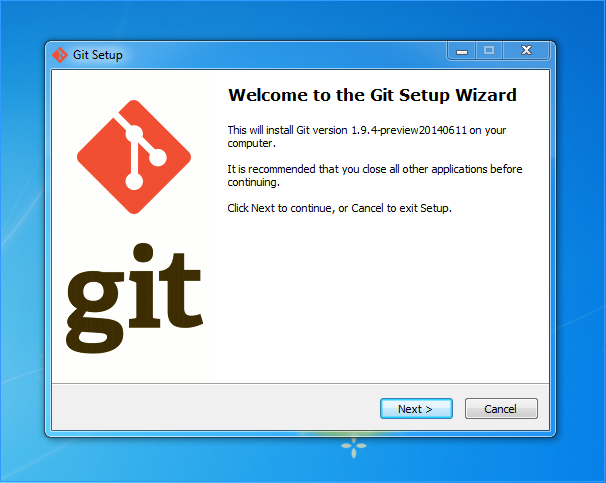
Steps
Visit: https://git-scm.com
Download Git for Windows
Install it using default settings
Verify installation:
git --version
6. Install Android Studio
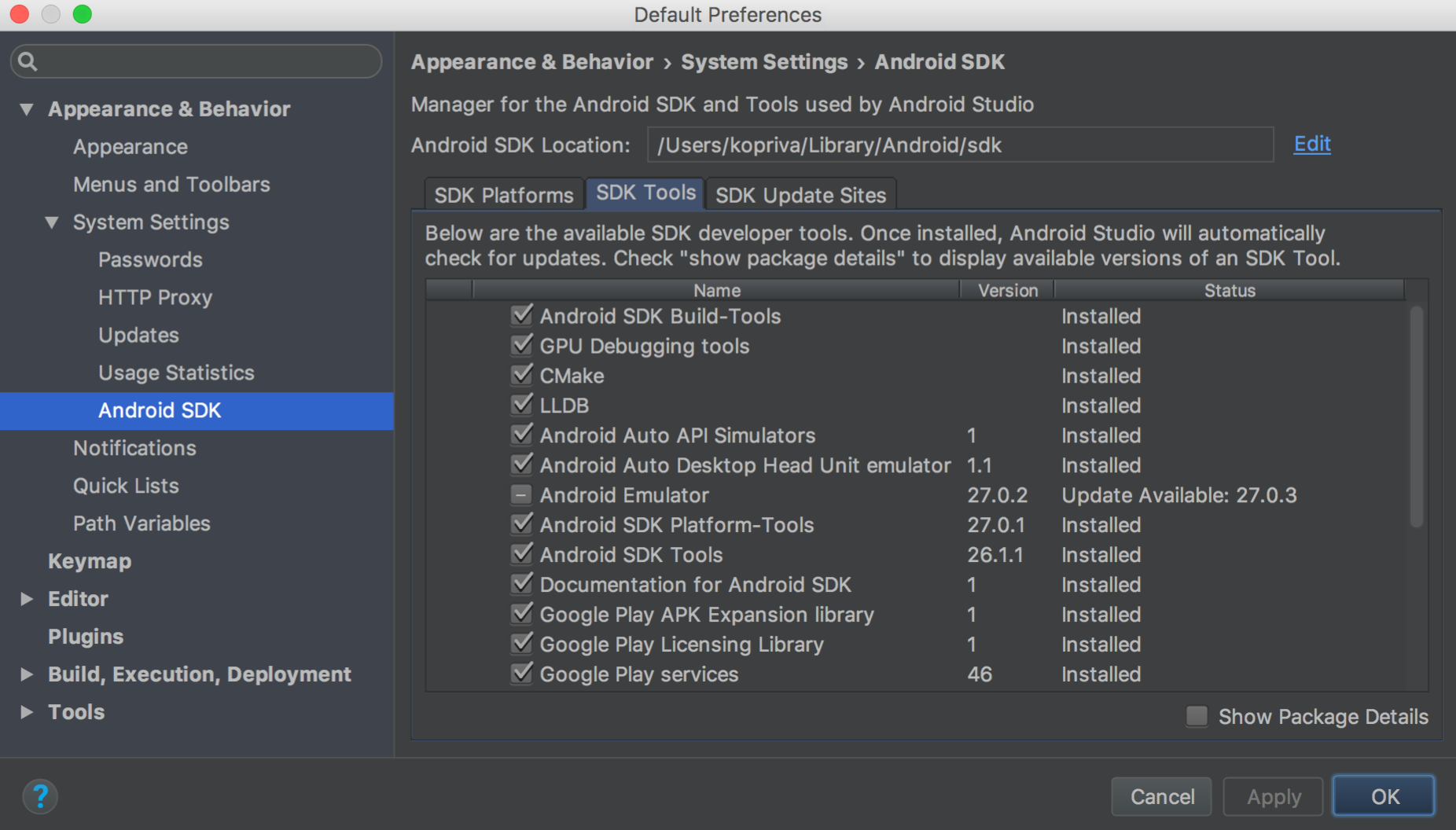
4
Steps
- Download Android Studio from
Install Android Studio
Open SDK Manager
Install:
Android SDK
Android SDK Platform Tools
Android Emulator
7. Install Flutter and Dart Plugins
If you are using Visual Studio Code
Steps
Open VS Code
Go to Extensions
Search:
Flutter
Dart
Install both extensions.
8. Run Flutter Doctor
After installation, open Command Prompt and run:
flutter doctor
Example output:
[✓] Flutter[✓] Android toolchain[✓] Chrome[✓] Visual Studio Code[✓] Connected device
If any tool is missing, Flutter will show instructions to fix it.
9. Create Your First Flutter App
Run the following command:
flutter create my_first_app
Then open the project:
cd my_first_app
Run the application:
flutter run
10. Project Structure
Typical Flutter project structure:
my_first_app├── android├── ios├── lib│ └── main.dart├── pubspec.yaml└── test
Main app code is inside:
lib/main.dart
Conclusion
Setting up Flutter on Windows is straightforward. Once installed, you can quickly start building cross-platform mobile applications with a single codebase.
Flutter’s powerful features like Hot Reload, rich widgets, and fast performance make it one of the best frameworks for modern app development.


0 Comments
Enter your message here